
Add Pick Component
Overview
Add Pick creates a new copy of an existing component that is already placed in the current assembly, then places the copied file back into the assembly. This is the “pick it from the model” version of Add: instead of browsing for a file, you select an occurrence in the graphics window.
This command is intended for workflows where you are assembling from shared sources (templates, prior jobs, or project libraries) but want the new instance to belong to the current assembly. It copies into the active edit document’s folder and applies the active assembly’s naming prefix so files remain organized and consistent.
Like Add, the active assembly must have a valid prefix (see File Names). If a prefix cannot be determined, the command stops without making changes.
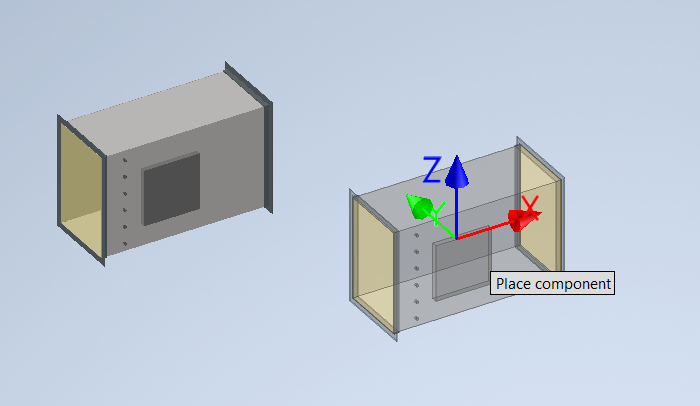
Add Pick Sample. When promtped pick a component to duplicate and place, followed by the place component prompt to place the new component into the assembly.
Usage Instructions
- Ensure the active assembly is saved and has a valid prefix (see File Names).
- Click Add Pick in the Create suite.
- When prompted, select the component occurrence you want to duplicate.
- When placement begins, position the newly copied component and finish placement.
- Save the assembly (and any new files, if prompted).
Troubleshooting
- Missing assembly prefix — cannot add component. The active edit document does not have a recognized prefix. Rename the assembly to include a valid prefix and retry.
- Nothing happens after picking. Add Pick always continues into interactive placement. If placement is canceled, rerun the command or use Place Pick to place a chosen component.
- References did not copy as expected. See Static and Library Files and confirm any referenced files are accessible and not locked.
- Incorrect component selected. Re-run Add Pick and select the correct occurrence. (The command is configured to allow selecting only one occurrence per run.)
Examples
Duplicate a placed template component
Pick an existing template-based occurrence that is already in the assembly; Add Pick creates a new prefixed copy and places it as a separate, editable file.
Bring an externally sourced component “into” this assembly
If your assembly currently references a component from another job folder, use Add Pick to copy it into the current assembly’s folder and continue working without cross‑job dependencies.
Create multiple unique variants
Run Add Pick repeatedly on the same source occurrence to generate multiple unique files that can be edited independently.
